
Download. Boot. Make it yours.
Choose SegLinux Lite or Full, prepare a USB stick, and try the desktop before installing.
Which edition?
| Edition | Download | Best for |
|---|---|---|
| Lite | One ISO, 736 MB | A smaller download; Setup gets the remaining packages online |
| Full | 2.8 GB, in two parts | Installing with the included applications available offline |
One Full ISO with the automatic helper
Download the Full ISO helper. It is a small Python program, not the ISO itself. It downloads the latest published Full image, joins the pieces in order, and verifies the official SHA-256 checksum. The result is one bootable .iso file in the folder where you run it. You need Python 3.9 or newer and at least 3 GB of free space. Keep the terminal open until verification finishes.
Windows
Install Python 3 from python.org if needed. Open Terminal in the folder containing download-full.py and run:
py download-full.py
Linux or macOS
Open a terminal in the folder containing the helper:
python3 download-full.py
To choose another folder:
python3 download-full.py --directory /path/to/downloads
The helper refuses to overwrite existing downloads, shows progress, and removes its temporary file if the download fails or you cancel with Ctrl+C. Retry the same command after resolving a connection problem. Older releases still use the name wincraft; the helper preserves that filename so it matches the published checksum.
What are Part 1 and Part 2?
They are consecutive pieces of one ISO, not separate editions. GitHub release assets must each be smaller than 2 GiB, so the Full image is split for hosting. The helper joins them automatically. You cannot boot either part individually.
If you prefer manual downloads, open Or download the parts manually on the Full card. Download both pieces and the SHA-256 file into the same folder. Full images are named seglinux-INIT-DATE-x86_64.iso; the download card shows the exact command for the current one. For example, for an OpenRC build of 1 November 2026:
Linux or macOS: join the parts
cat seglinux-openrc-20261101-x86_64.iso.part00 seglinux-openrc-20261101-x86_64.iso.part01 > seglinux-openrc-20261101-x86_64.iso
Windows Command Prompt: join the parts
copy /b seglinux-openrc-20261101-x86_64.iso.part00+seglinux-openrc-20261101-x86_64.iso.part01 seglinux-openrc-20261101-x86_64.iso
Images built before the project was renamed (including the Full image of 12 October 2026) are called wincraft-… instead: use the exact filenames shown on the download card. Manual joining requires room for both the parts and the combined ISO (roughly 6 GB total).
Verify a manual download
The automatic helper already verifies the ISO. For a manual download, compare the SHA-256 hash against the downloaded .sha256 file:
# Linux: run in the folder containing the ISO and its checksum
sha256sum -c seglinux-openrc-20261101-x86_64.iso.sha256
# macOS
shasum -a 256 -c seglinux-openrc-20261101-x86_64.iso.sha256
On Windows, use PowerShell Get-FileHash -Algorithm SHA256 your-image.iso and compare its result with the checksum file. Substitute your actual ISO filename.
Prepare a USB stick
Use Ventoy or Rufus in DD mode. Use the complete ISO, not a .part file. Writing an image erases the target USB stick, so save its files first.
Boot and install
- Disable Secure Boot in your firmware settings; the current boot chain is not signed for it.
- Select the USB stick in your computer's boot menu.
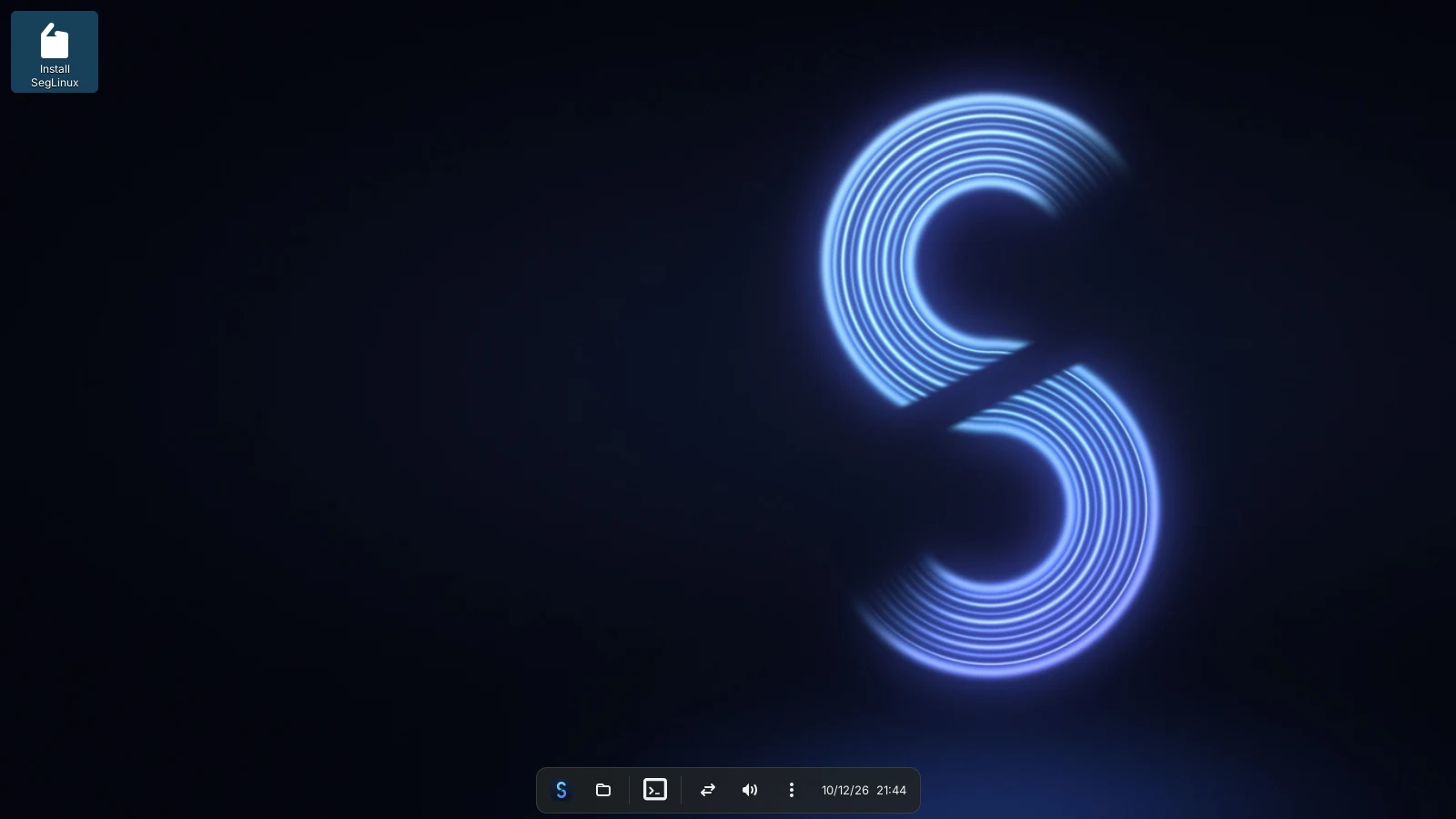
- Choose Start SegLinux and try the live desktop. It is selected already and starts by itself after 10 seconds; choose the keyboard layout, language or time zone entries first to change them.
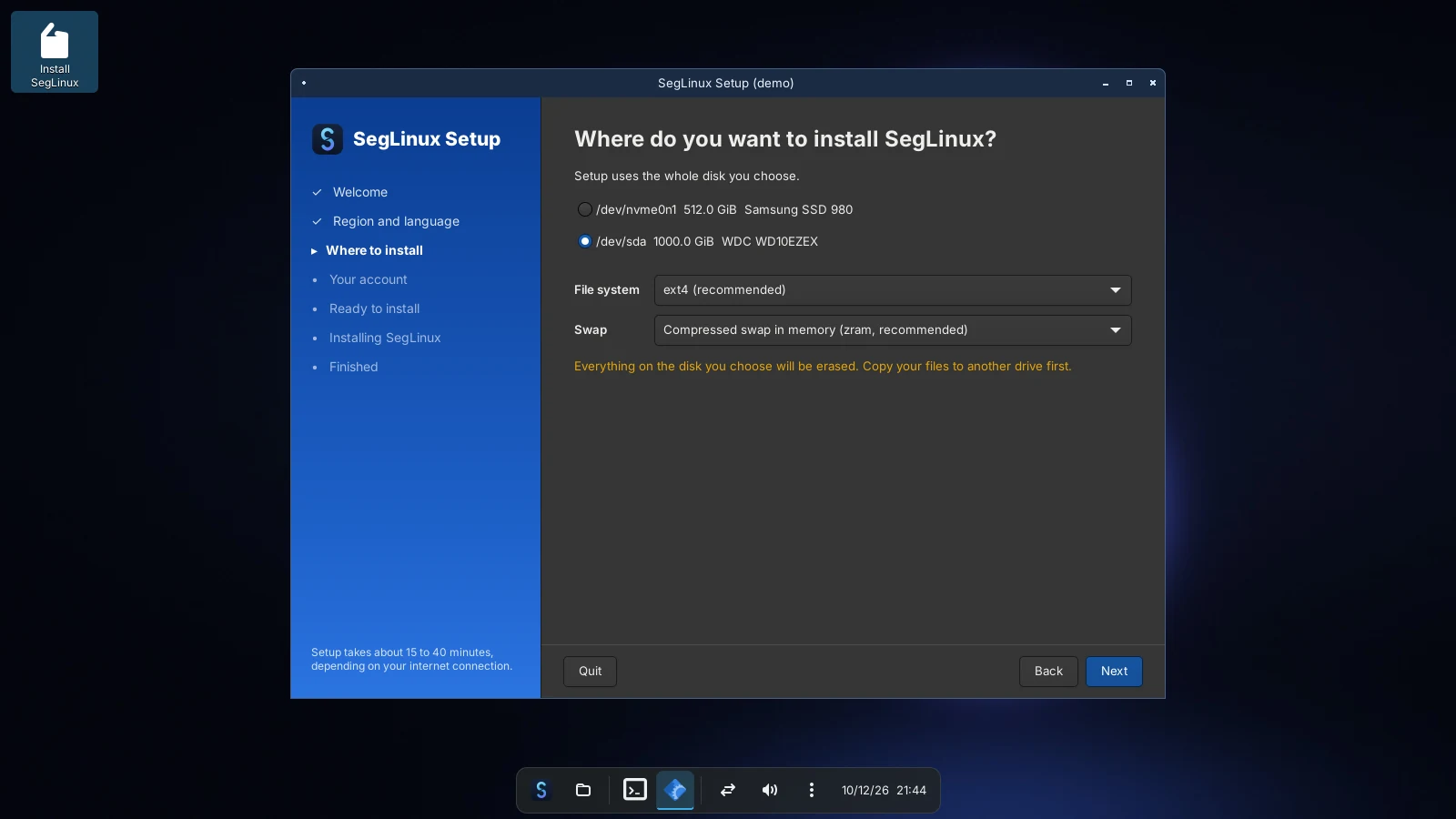
- Open Install SegLinux and follow Setup. Lite needs an internet connection to obtain its remaining packages.
- After installing, press Super+I for Settings: theme, wallpaper, dock, keyboard layout, mouse and gaming options, applied at once.
Setup erases the disk you choose. Back up your files and check the selected disk carefully before confirming installation.
Next steps
- Meet the desktop
- Keep it up to date:
sudo seglinux-update - Set up your games
- Run Windows applications
- Build your own ISO